Which muscles get attention in your training?
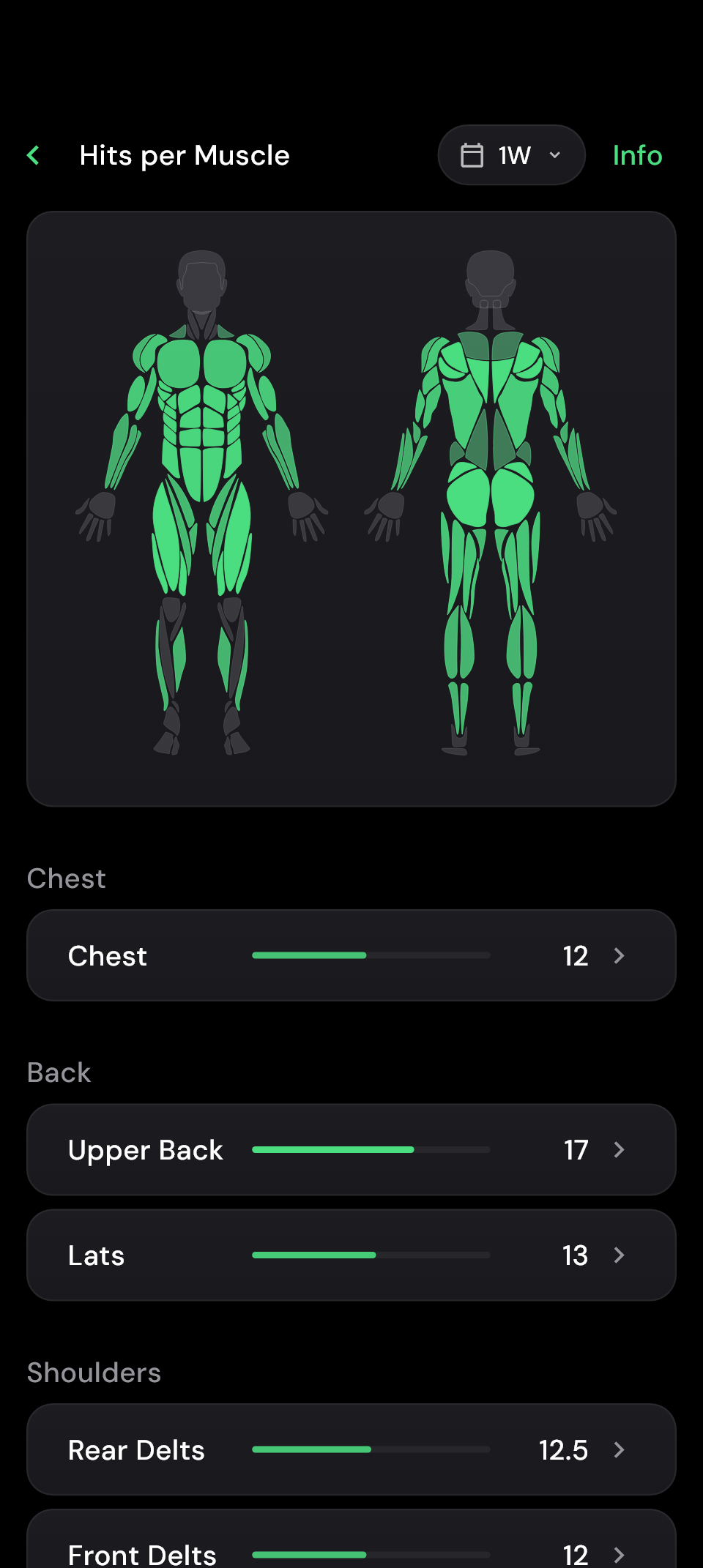
Looking at individual training days only shows part of your plan. The muscle map shows the distribution across several sessions. It can help you check, for example, whether your planned focus on legs also shows up in the workouts you actually completed.
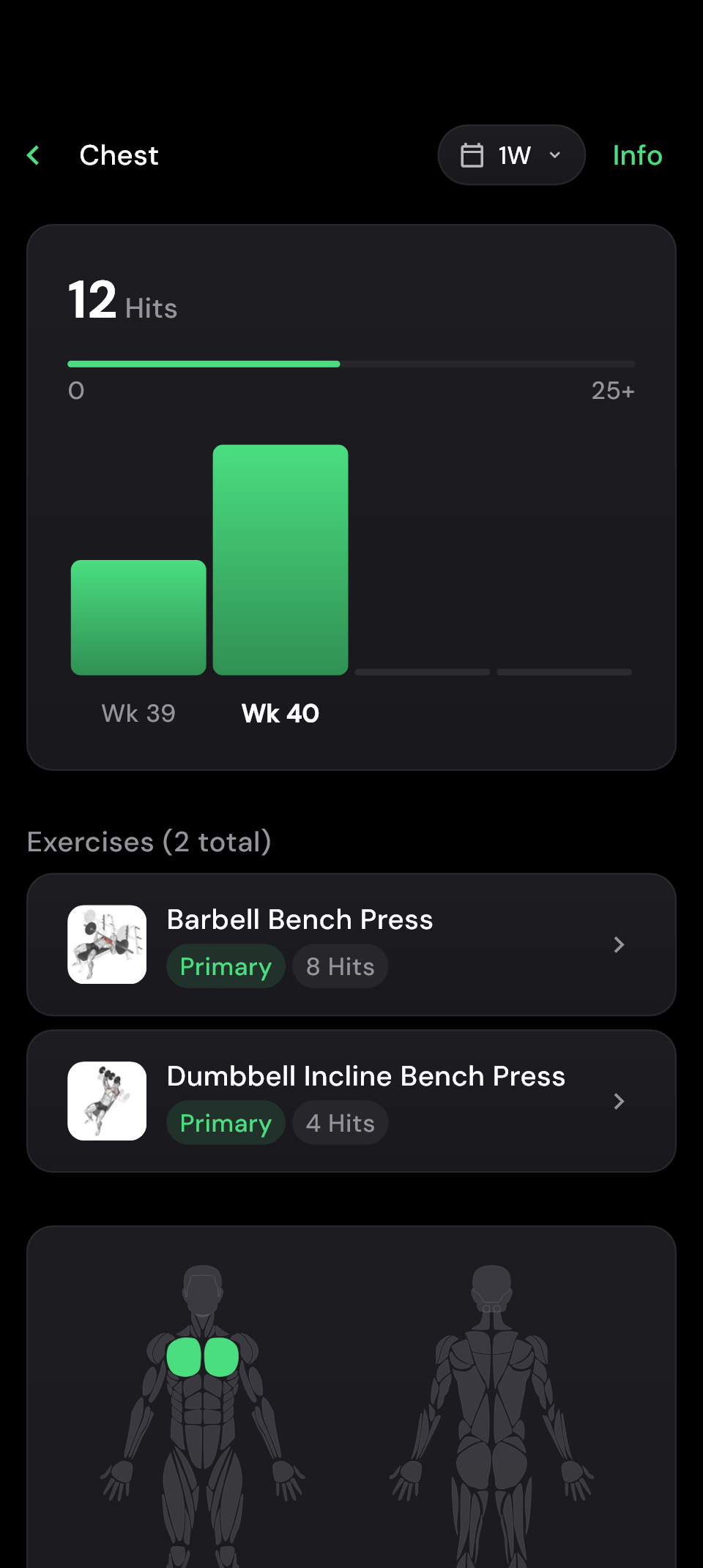
Tap a muscle group to look more closely. See which exercises contributed and follow the trend across the weeks. You can then relate a change to your training: did you add exercises, complete more sets or miss a session?
Where can I find the muscle map?
Open Hits per Muscle in Progress. Choose a period and tap a muscle to see the exercises involved and the weekly trend. You can also find a muscle overview in your planned sessions, during a workout and in the workout summary.
See the work your supporting muscles do too
Many exercises involve several muscles. hitPR distinguishes between the primary muscle and those that assist. During the bench press, more of the work is attributed to the chest than to the triceps. The app calls this weighted contribution Hits.
What matters for your training is how the total is made up. Several exercises in your plan may already work a muscle, even if you have only included a few exercises specifically for it. The detail view helps you understand these contributions before adding more sets.
The map focuses on working sets of exercises measured in reps. It excludes warm-up sets and exercises measured in time or distance. An empty area can therefore also mean you trained those muscles with holds, for example. Read more about interpreting direct and indirect work in the article on effective sets.
 Enlarge image
  Enlarge image
 Check what your next workout will add before you start
When creating your plan, the muscle overview helps you check whether your exercise choices match your intended focus. You can look at a single session or, for a plan with several sessions, view the average weekly distribution.
The Preview adds the selected planned session to your training from the past seven days. You can see how that session would contribute to your training week so far. This is particularly useful if you switch flexibly between training days.
During your workout, you can also distinguish completed work from what is still planned. Once you finish, the summary shows the sets you actually completed. If you do fewer sets or replace an exercise, the distribution may therefore differ from your original plan.
Use colours for an overview and your goals for direction
The colours show where more or less training work has accumulated. You do not have to aim for an evenly coloured map: a plan with a deliberate focus can reflect that. Use the view to compare the actual distribution with what you want to train.
For the past seven days, you see the work accumulated over that period. For longer periods, hitPR shows a weekly average. Use the same period and view when making comparisons; a single session and several weeks of training use different scales.
Colour alone cannot tell you how well you have recovered or how effective a set was for you. Consider your performance, effort and how you feel too. The map gives you an overview of the distribution; that other information helps you adjust your training to suit you.
Frequently asked questions
Why is a muscle group I trained missing from the map?
Check that your sets are completed and which muscles are assigned to the exercise. Warm-up sets and exercises measured in time or distance do not appear here. For exercises you create yourself, you assign the muscles yourself.
Can I change the muscles assigned to an exercise?
Yes, through Adjust Muscles in the exercise settings. A change also affects the analysis of earlier workouts with that exercise. Match the assignment to how you actually perform it.
Do I need Pro for the muscle map?
The muscle map with up to four weeks of history is free. Pro lets you view longer periods.